To create a pause profile, the user to whom the pause profile is created, needs to have CC Pro as an extra feature in their license. An administrator can create new pause profiles through the Admin portal by going to Users > Profiles > Create new profile. 

When you create the pause profile, do as you would with a regular profile. Note: You need to select the profile's status to be Not available in order to make the pause button appear.
Beneath Standard length, you also will get the option to set how long the profile should be active. If you choose a specific length, you can set the length of the pause. This can of course be changed at any time. When the profile is done and you have saved your changes, the button beneath will appear in your softphone:
The pause profile is activated when the button with the pause icon is dark blue. When the pause is over, your profile will change to your scheduled profile again and the pause button will turn gray.
Automatic pause profile
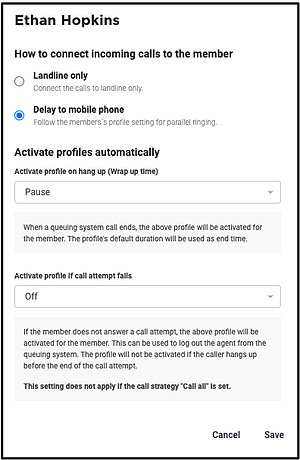
If you would like an automatic pause profile that activates after a terminated queue call, you can add this directly to the queue system. Start by logging into the admin portal and go to PBX services. Chose the queue on which you want the pause profile to activate automatically and then click on the pen next to the agent's name.
This pause will be as long as you want to. Using a pause profile will give the agent valuable time to handle the previous call and not rush to the next one.
If you have not selected the strategy Call all, you can make a profile activate automatically. This is useful if an agent does not answer the a call. By using this, you can minimize all missed calls.