CC Pro is an extra feature, which has bundled together some of our features. See below for more information!
My overview
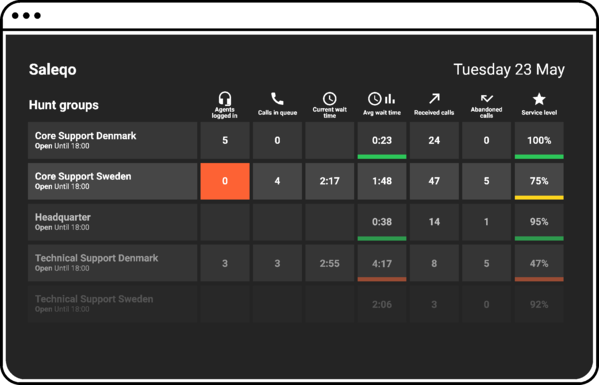
My overview is a dashboard within the PBX tab in our softphone which shows you an overview of your queues and agents. In the overview, you can see metrics such as how many calls are in the queue, how many users are logged in and available, and the longest waiting time for your queues. Only users with CC Pro and the statistics permission can access the overview. Read more about My overview here.
Co-listening
This feature makes it possible to listen in on colleagues' conversations in real-time. Both the person who listens in and the person who is listened to need the CC Pro additional service. Read more about co-listening here.
Call widgets
Call widgets can be set up to automatically search the numbers of which you are receiving incoming calls of. Read more about call widgets here.
Activate profiles automatically (Wrap-up time and a failed call attempt)
The most common way to use this functionality is to set a profile to be activated after a finished call. The profile is often set so that it logs out the user from queues and thus will not send calls to this user. This way, the functionality is used as an automatic wrap-up time that starts after a call.
The settings for profiles are adjusted in Users > Profiles (e.g. length, queue log in or caller ID).
To access the settings for automatic activation of profiles, you go to a queue, then place your pointer over a queue member to bring up a grey icon and adjust settings for the user in the queue. Click this button – then you will get activate profiles automatically in a separate popup window.
There, you can select which profile should be activated after a call. These options will be shown only to users who have CC Pro activated.
There is also an alternative for which profile should be activated in case a queue member does not answer a call (misses the call length). The picture below shows and describes the alternatives which can be selected on this occasion.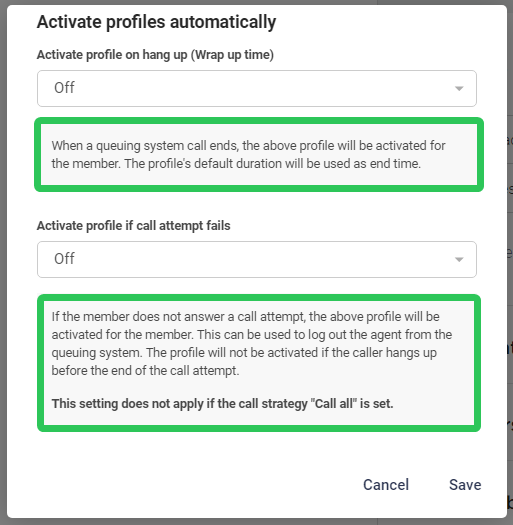
Pause Profiles
Pause profiles are profiles that can be activated by pressing a pause button in the Telavox app – this way, you can activate a profile fast and log out from queues. In order to turn a profile into a pause profile, you have to go to Users > Profiles. Then select a user and a profile (or create a new one). After having done this, you can mark a profile as a pause profile as shown below.
The checkbox for a pause profile is available only for users with CC Pro.
The GIF below shows you what the pause button looks like and how it is used.
Dashboard
Users with CC Pro can create different dashboards to see how their queues and agents are doing throughout the day. You can create a dashboard from one or many queues, or select which agents are shown in your dashboard. That way, you will get an overview of your queues or agents.
To create a dashboard in the Telavox app, you go to Settings > Dashboards.
You will then get the choice between two types of dashboards:
Multiple Queuing Systems
Shows an overview of the chosen queues and the call statistics for them.
Custom Team
Shows an overview of the chosen users and their call statistics. Both queue calls and direct calls are taken into account in this view.
You will also see an extended explanation of the different displayed data points in the step where you create the dashboard by scrolling down.